| .. | ||
| images | ||
| README.md | ||

Guide on getting a private WoW server running
This is the documentation to create a World of Warcraft server.
The VM has to have a minimum of 3 cores, 50 gig of storage and 4 gig of memory not less
You will set the number of cores during the make steps
Setting up the Server
Core Installation
- Log into server using putty.
- Create a user names acore with pw acore
sudo adduser newuser - Then add them to the sudo group
sudo usermod -aG sudo newusername - Install the needed packages
sudo apt-get update && sudo apt-get install git cmake make gcc g++ clang libmysqlclient-dev libssl-dev libbz2-dev libreadline-dev libncurses-dev mysql-server libboost-all-dev unzip - Install Mysql
export MYSQL_APT_CONFIG_VERSION=0.8.33-1 - Download the latest Mysql Repository
wget https://dev.mysql.com/get/mysql-apt-config_${MYSQL_APT_CONFIG_VERSION}_all.deb - Configure the install directory
echo $HOME export AC_CODE_DIR=$HOME/azerothcore - Clone the Github
git clone https://github.com/azerothcore/azerothcore-wotlk.git --branch master --single-branch $AC_CODE_DIR - Create a direstory named build to keep things organized
cd $AC_CODE_DIR mkdir build cd build - Configure for compiling
cmake ../ -DCMAKE_INSTALL_PREFIX=$AC_CODE_DIR/env/dist/ -DCMAKE_C_COMPILER=/usr/bin/clang -DCMAKE_CXX_COMPILER=/usr/bin/clang++ -DWITH_WARNINGS=1 -DTOOLS_BUILD=all -DSCRIPTS=static -DMODULES=static - You need to set a variable for the number of cores need for the "make" step. This ensures you do not run out of memory.
First check to make sure you have the correct amount of cores on the machine
Then set the VARIABLE to the max numer.nproc --all
!NOTE See above important message regaring server requierments.
-
This will set a varibale to the number of cores a min. of 3.
export BUILD_CORES=`nproc | awk '{print $1 - 1}'` -
Run the make install commands (note: this will take awhile)
make -j$BUILD_CORES
make install
Server Setup
-
Go to the directory /azerothcore/env/dist/bin
-
You must do the above step to ensure the zip file goes into the correct place.
-
Download the data.zip file with the game files in it.
wget https://github.com/wowgaming/client-data/releases/download/v19/Data.zip -
Unzip the zile in the same folder it is in
unzip Data.zip -
Get the worldserver.conf and authserver.conf from the direstory /env/dist/etc/
You need to change the name of them, in the directory they are called worldserver.conf.dist and authserver.conf.dist
You open them in nano and write out, save by taking off the .dist extenstion
nano worldserver.conf.dist
nano authserver.conf.dist
Database Installation
-
Go to the following directory
/azerothcore/data/sql/create
run this file thats located in the directory using this command
sudo mysql < create_mysql.sql -
Go to the following directory
/azerothcore/env/dist/bin
run the batch files to start the auth and world server !NOTE Once they are up and running stop them using the command
ctr+crun the auth stop it and then the world and stop it./authserver ./worldserver
Networking
- Set the ip address of the machine in the MySql database
Run the following commands in order
```
sudo mysql

use acore_auth;

UPDATE realmlist SET address = ' IP of machine 192.168.*.*' WHERE id = 1;

exit
```
Time to start the server
-
You need to create a screen session for each server auth and world
-
Starting auth server
screen -S auth
./authserver
[CTRL+a] then "d"
screen -S world ./worldserver [CTRL+a] then "d" -
Screen commands
to create a screen session
screen -S (name of screenseesion you are creating)to get out of a screen session
[CTRL+a] then "d"to list all the screen session that are running
screen -lsto reattach to an exisitng screen session
screen -r (name of of screen session)
To add a user into the database for players access to the game
-
To create an account
account create <user> <pass> -
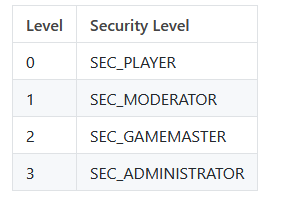
to set account security level
account set gmlevel <user> <level> <realm>NOTE! Realm will be -1 always
You can grant different levels of account security please see table below, 0 is regular player 3 is admin
Client configuration
-
Navagate to the folder in the WOW WOLK Client folder
\Wrath of the Lich King\Data\enUS
locate the file named realmlist.wtf
open in notepad and change the set realmlist server Ip 192.168..*