| images | ||
| Minecraft | ||
| WoW | ||
| README.md | ||

Steve's HowTo Guides and Wiki Pages
This set of documentation is kind of a catch-all for everything from coding projects, to system services, games, and network projects.
For lots of great information about writing markdown syntax referencing the GitHub Markdown Docs is a great place to start.
Initial Setup/Cloning
This repository can be cloned locally with the following process:
- Open a command prompt in the folder where you intend to clone the repository
git clone https://git.jaj.com/sdeaton/HowToWiki.git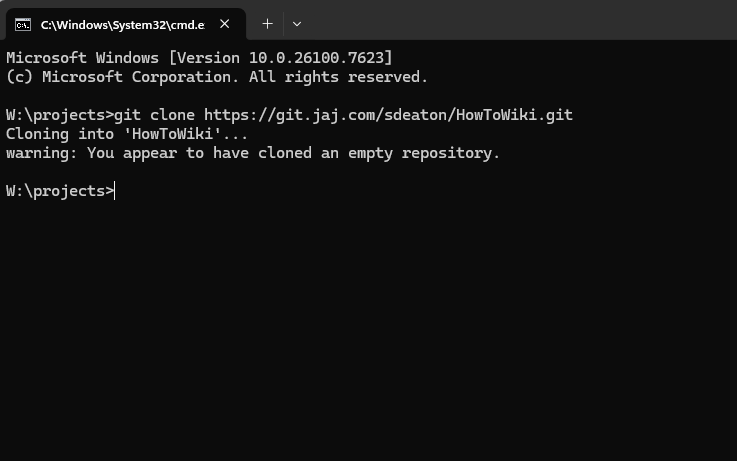
- Close the command prompt (we'll do the rest in VSCode)
- Right-click the newly created
HowToWikifolder and select Open With VSCode - Ensure you have the readme-preview extension installed.
- Right click any
.mdfile in the repository and select Open Preview to open a preview panel so you can see what the markdown will look like after it's uploaded.
Committing and Pushing New Content
All of the contents for the repository are self contained in the top level folder. What that means is that it can be edited, changed, committed, and pushed using any tool that "speaks Git". It is easy to use the version control tool from within VSCode to do this (the icon with the three dots on the left in VSCode  ), but can be done from the command line or any other third party tool without conflict.
To commit and push:
- Two settings must be configured after first checking out the repository
- The user's email
- The user's name
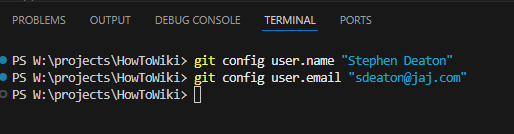
- Open a terminal at the top level of the folder. You can do this within VSCode by using the shortcut CTRL-backtick
- Set the name: `git config user.name "Stephen Deaton"
- Set the email: `git config user.email "sdeaton@jaj.com"
- Click on the Source Control icon
- If a button labeled "Manage Unsafe Repositories" is shown the first time you do this just click it and proceed.
- Any files which differ from what is on the server will be listed with various labels at the right
- U - This means the file is untracked meaning it has yet to be pushed to the server at all (i.e. a new file)
- M - This means the file has been modified
- Hover over any files you want to commit as a group and click the large + symbol to stage that file.
- After selecting all the files you with to commit together simply fill in the message box with the desired commit message (be descriptive, but don't write a paragraph) and click the Commit button.
- One or multiple commits can be made before pushing up to the server. For a rule of thumb:
- Commit frequently with relevant changes together
- After any number of commits that sort of belong together have been made (like a new feature) then you would push the changes up to the git server
- The Publish Branch button is used to push commits to the server.
Images in the documentation
Images, like the screenshot above, can be committed to a folder in the repository and referenced with indirect links.
For example:

Note that there is no leading slash for the image path as it is relative to the location of this markdown file. If you are editing a markdown file in a subfolder you must use the relative path from where that markdown file is located.
For example: If you were in a subfolder called minecraft but the image was located in the top level images/ folder

Important Notes
- The default file name which will be loaded when entering a folder is
README.md(all caps name with lower case extension). - The changes won't show up on Gitea until they are committed and pushed.
- Using the version tracking system built into VSCode is the easiest way to manage commits and pushes.
- Do frequent commits. Treat each change as sort of a "feature update" where you commit all of the markdown and associated files as a unit. i.e. if you add an image and update the markdown in the
minecraftfolder to add to the documentation, commit both files together.